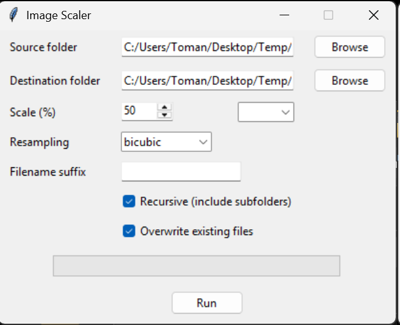
I’m working on a personal project. And I have to deal with a lot of textures. Instead of using photoshop and batch manipulating images I decided to go the “easy” route and build a small app that takes all images from one directory, processes them and outputs them in another.
Look at that pretty interface:
The usual workflow
In a usual production workflow you will have two repositories for your project:
- Source Repository
- Assets Repository
Inside the Source Repository is where the actual application source lies. The Assets Repository is for the source asset files. In the case of 3D production that would be the files from the DCC tools (.psd, .max, .ma, .blend, .spp etc).Ideally, these two folders should have the exact same folder structure. Example:
- Source
- 3D
- Environment
- Characters
- 3D
- Assets
- 3D
- Environment
- Characters
- 3D
When exporting models or textures from Assets to Source the usual way (or at least what I used to do) is to set your DCC to directly export in the corresponding Source directory. And that works fine… mostly
The problem
Where the usual workflow fails is if you are building a game that needs to ship to multiple platforms. In that case the art assets need to be adjusted per platform.
Most engines have an option to set the maximum resolution per export target, but that is not the case with many proprietary engines or frameworks I often work with. Also, some of the ones are still exporting the full resolution images in the final game and just picking a lower resolution for when the game is running. That works in terms of video ram savings, but the game is still bigger than it needs to be.
My solution
Instead of directly exporting to the Source folder I am exporting all my assets in their corresponding folder inside the Assets directory at the highest possible resolution. And when I want to export my images to the Source I just run the app and set the scale I want the images to be in. When everything is hooked on the engine side all I have to do to re-scale all images is to start the app, check the root folder of both directories and click “run”. I have a fully replaced images with the correct resolution. If I need to change the resolution (up or down) I just re-run the software. It takes no time at all. So that way when I export my game for PC or higher targets I set the resolution to 100% and when I export for mobile – 25%.
Feel free to check it here